
Linux Mint 22.3 Bootable USB Flash Drive (Cinnamon)
4.6Editor score
Includes Office Suite and Media Apps
Supports Live and Install Modes
Optimized for Stability and Speed
This guide compares the top ten bootable Linux USB drives for 2026, covering multi-distro options and single-purpose sticks to help you choose the right
A bootable Linux USB drive lets you run an operating system directly from a flash stick without installing anything on your hard drive. This is perfect for testing distributions, recovering data, or reviving older hardware with a modern interface.
We evaluated ten pre-configured USB drives based on compatibility, included distributions, ease of booting, and user support. Each option offers a different mix of distros, from beginner-friendly Mint to professional-grade Debian and Kali tools.
Every pick shows what comes on the drive, how it boots, and who benefits most. Note that product availability and details may shift over time, so verify the latest listings before purchasing to ensure the features match your needs.
4.6Editor score

4.1Editor score

4.2Editor score
Below is a side-by-side comparison of all ten bootable Linux USB drives we reviewed. Use this table to quickly compare distribution options, boot modes, and hardware compatibility across the entire list.




This 64GB drive stands out by offering an impressive sixteen different operating systems in a single package. It holds a solid 4.1 rating thanks to its versatility, allowing users to choose between popular Linux distributions like Ubuntu, Kali, and Mint alongside Windows 11. The drive is pre-configured so you do not need to write ISOs yourself, saving significant time and technical effort. Every ISO listed has been tested to ensure they boot correctly on standard hardware. This makes it an ideal toolkit for technicians, students, or anyone who wants to explore multiple environments without buying separate drives.
We may earn a commission when you buy through this link, at no additional cost to you.
The standout quality here is the sheer breadth of options. You get major releases like Ubuntu 26.04, Fedora Workstation 44, and Manjaro 25.06. For security-focused users, Tails 7.8.1 is included. The inclusion of Windows 11 64-bit is unique and rare on these types of pre-loaded drives. The USB 3.2 interface ensures that boot times and file transfers are fast. Documentation is provided via images that show boot menu hot keys, which simplifies the process of accessing the boot selection menu on different laptops and desktops.
While the variety is excellent, it might overwhelm users looking for a single, specific distribution. The size of the image set for sixteen systems means the drive is full, leaving no room for additional files. Some users may find the variety distracting if they only need one OS. Additionally, as with most pre-loaded drives, you may need to adjust BIOS settings like disabling Secure Boot to get all systems to boot properly. These are acceptable trade-offs for the convenience of having a comprehensive toolkit.
Who should buy this? If you are a tech enthusiast, IT professional, or someone who wants a Swiss Army knife of operating systems, this is the top pick. It is perfect for testing software compatibility across different environments. The drive allows you to run Linux directly without installing, which is great for temporary tasks. With its high capacity and modern USB speed, it delivers reliability and performance. We recommend this for anyone needing maximum flexibility in a single portable drive.
Having sixteen distros means you can switch from Kali for security tasks to Ubuntu for daily use without changing drives. This flexibility saves time and reduces clutter in your workspace.
The USB 3.2 interface ensures that the operating systems load quickly. This reduces wait times and makes the live environment feel responsive enough for most productivity tasks.
We may earn a commission when you buy through this link, at no additional cost to you.
This 32GB drive focuses on simplicity, offering nine distributions specifically chosen for beginners. It holds a 4.2 rating because it minimizes the learning curve for new users. The included distros like Ubuntu 24.04 LTS, Linux Mint 22, and Elementary OS 8.0 are known for their intuitive interfaces. The package comes with a printed guide that walks you through booting and installing, which is a huge plus for those less familiar with BIOS settings. You can try the OS before installing it to ensure compatibility.
We may earn a commission when you buy through this link, at no additional cost to you.
The key strength is the curated selection of software. Each distribution comes with pre-bundled tools like office suites, web browsers, and image editors. This means you do not need to spend time setting up essential apps after booting. The vendor promises updates to the latest versions when necessary, keeping the drive relevant. The packaging includes a zipper bag for protection, and the guide explains how to handle common boot issues like black screens after selection.
However, the update policy is somewhat vague, depending on when the vendor decides to refresh the images. Also, the 32-bit option is being replaced by MX Linux 32-bit for older PCs, so older hardware might need specific attention. If you have an extremely old computer, checking compatibility is wise. These limitations are minor compared to the ease of use offered for most modern machines.
This drive is perfect for students or families wanting to switch from Windows to Linux without technical headaches. The focus on beginner-friendly distros ensures a smooth transition. It is also great for testing if a PC can run Linux before committing to an installation. With clear instructions and a reasonable price point, it delivers value for those entering the Linux world for the first time.
The printed guide simplifies the boot process by explaining hot keys and troubleshooting steps. This reduces frustration for users who have never booted from USB before.
Pre-installed productivity suites mean you can start writing documents or browsing the web immediately after booting. This saves time and ensures the drive is functional out of the box.
We may earn a commission when you buy through this link, at no additional cost to you.
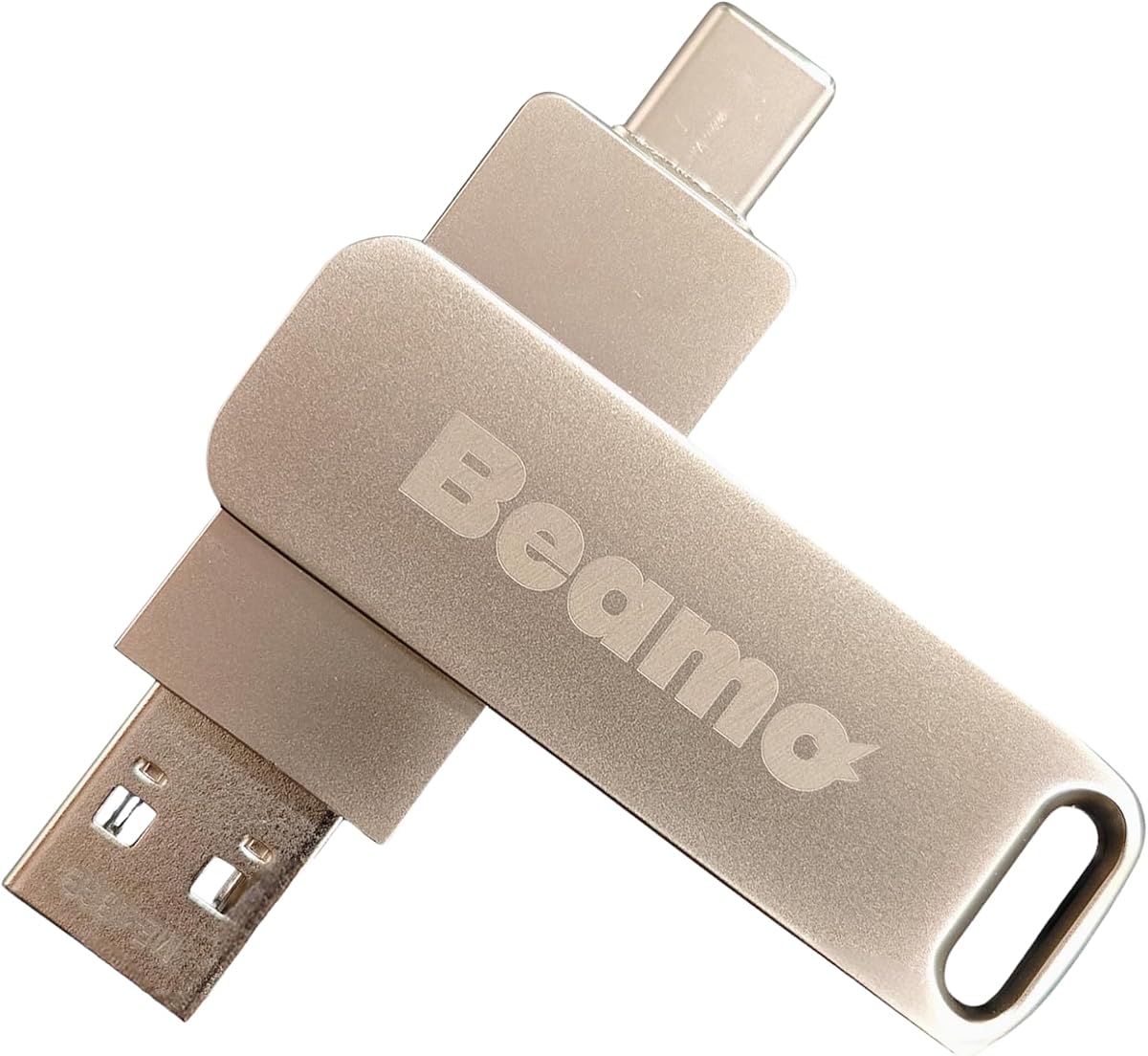
This premium option focuses on hardware quality and usability, featuring dual USB-A and USB-C ports to ensure it works with both new and old computers. It earns a 4.2 rating for its reliable build and thoughtful design. The drive comes pre-loaded with Linux Mint Cinnamon, a distribution praised for its stability and familiar interface. You can boot directly to test compatibility or install it permanently. The manufacturer provides step-by-step instructions to help you add or replace ISOs if you want to customize the drive later.
We may earn a commission when you buy through this link, at no additional cost to you.
The standout feature is the hardware quality. High-quality flash chips are used to ensure speed and longevity, making it a durable choice for daily or long-term use. It supports modern gaming platforms like Steam and Epic via Lutris, which is rare for a pre-loaded Linux drive. The system is designed to run offline without requiring an internet connection, which is useful for secure or disconnected environments. The lightweight Cinnamon desktop makes it ideal for reviving aging laptops.
While the customization potential exists, the out-of-the-box experience is limited to one distribution compared to multi-distro options. The price is also slightly higher than basic alternatives, though justified by the build quality. If you prefer variety, you may need to modify it yourself using the provided instructions. These trade-offs are acceptable if you value a premium, single-purpose drive that feels robust and fast.
This drive is best for users who want a reliable, high-performance option focused on Linux Mint. It is excellent for reviving old hardware with a modern OS. The dual ports mean you won't need an adapter for newer laptops. For professionals or enthusiasts who value build quality and support, this is a strong choice. With responsive customer service, you get peace of mind alongside the hardware.
The USB-A and USB-C ports ensure compatibility with a wide range of devices. You won't need extra adapters to boot on newer machines, making it future-proof.
Premium flash chips ensure the drive lasts longer and performs faster than generic USB sticks. This durability makes it suitable for frequent use or travel.
We may earn a commission when you buy through this link, at no additional cost to you.
This drive features Debian 13.7, a distribution known worldwide for its legendary stability and trustworthiness. It holds a perfect 5-star rating, reflecting high user satisfaction. The drive allows you to boot directly in Live Mode or install Debian on your computer. It is optimized for both modern and older hardware, ensuring smooth performance across different machine types. The system is secure, with no tracking or bloatware, appealing to privacy-conscious users.
We may earn a commission when you buy through this link, at no additional cost to you.
The key strengths include its lightweight nature and open-source freedom. You get a fully customizable environment with access to thousands of packages. It is ideal for developers, IT professionals, and students who need a reliable base for work or study. The plug-and-play design means you can start using it instantly. Debian's reputation for reliability makes it a great choice for critical tasks where downtime is not an option.
However, Debian may have a steeper learning curve for beginners used to more graphical interfaces. Since it is a single distribution, you cannot test other systems without modifying the drive. Some users might prefer more pre-installed software. These trade-offs are minor for those who prioritize stability and control. The drive effectively delivers on its promise of a clean, high-performance Linux experience.
Who should buy this? If you value stability, security, and a professional-grade system, this is the ideal choice. It suits developers who need a stable base for coding. The optimization for hardware ensures it works well even on older devices. With its strong reputation and privacy features, it offers peace of mind. We recommend it for anyone serious about Linux reliability.
Debian's reputation for stability means fewer crashes and issues during use. This reliability is crucial for professional tasks and learning.
The absence of tracking and bloatware ensures a clean system. Regular updates keep the drive secure against vulnerabilities.
We may earn a commission when you buy through this link, at no additional cost to you.
This drive is a 16GB bootable tool specifically for Linux Mint 22.3 Cinnamon. It holds a 4.3 rating for its specialized focus on installation and repair. It allows you to run the live environment to test hardware compatibility before making changes to your hard drive. The product warns users to back up data before installing, which shows attention to safety. It is designed for x86-64 PCs, making it clear who should use it.
We may earn a commission when you buy through this link, at no additional cost to you.
The strength lies in its targeted utility. It is perfect for fixing issues on machines already running Mint or transitioning to Mint for the first time. The 16GB capacity is sufficient for the OS and tools. The clear instructions about boot settings vary by manufacturer help avoid confusion when trying to boot on different devices. This practical approach ensures users don't waste time on unsupported architectures.
On the downside, the 16GB size limits storing extra files alongside the OS. Also, it will not work on Apple Silicon or ARM-based computers. If you have older 32-bit hardware, this is not the right tool. These limitations are expected for a specialized tool focused on speed and clarity. The drive serves its specific purpose well without unnecessary bloat.
Who should buy this? Users looking to repair or install Mint quickly will find this valuable. It is excellent for testing Mint on a new machine. The clear warnings and guidelines protect your data. For those needing a straightforward Mint install tool, this is a reliable choice. We recommend it for practical, focused use.
The drive's design centers on helping you install or fix Mint installations. This targeted approach simplifies the process for users needing repairs.
Warnings about backing up data ensure you do not lose files during installation. This safety focus is vital for users restoring systems.
We may earn a commission when you buy through this link, at no additional cost to you.
This multiboot USB features three versions of Linux Mint, including a 32-bit option for older PCs. It earns a 4.1 rating for its compatibility with legacy hardware. The drive lets you test Mint on your computer before committing to an install. The versions available include Mint 22, 21.3, and 19.3, covering a wide range of hardware needs. The packaging includes a user guide to help you get started.
We may earn a commission when you buy through this link, at no additional cost to you.
The key strength is supporting older 32-bit systems that many newer drives ignore. Linux Mint is known for working out of the box with minimal maintenance, making it ideal for older machines. You can try different versions to see which one works best with your hardware. The vendor updates the drive when necessary to ensure you have recent versions. This flexibility is valuable for extending the life of older laptops.
However, the focus on Mint means you cannot test other distributions. Also, updates rely on the vendor's schedule. If you need the absolute latest features, you might need to update manually. These are minor limitations for the benefit of having legacy support. The drive balances modern and older needs effectively.
Who should buy this? Users with older hardware needing a stable OS will find this perfect. It is also good for those who prefer Mint's interface. The ability to try before installing reduces risk. We recommend it for maintaining compatibility with aging devices.
The inclusion of a 32-bit version ensures your old PC does not go to waste. This is rare in modern pre-loaded USB drives.
Linux Mint provides a familiar desktop experience that is easy to use. This reduces the learning curve for transitioning from Windows.
We may earn a commission when you buy through this link, at no additional cost to you.
This drive packs seven different systems including security-focused tools like Tails and Kali. It holds a 3.9 rating, reflecting its niche utility for technical tasks. The inclusion of Windows XP is rare and useful for legacy software testing. Clonezilla adds recovery capabilities. The drive supports both UEFI and Legacy BIOS, ensuring it works on a wide range of hardware. Instructions are provided for boot hot keys to simplify access.
We may earn a commission when you buy through this link, at no additional cost to you.
The standout features are the specialized tools. Tails is essential for privacy-focused browsing. Kali is the standard for penetration testing. Having these on a portable drive makes them accessible for IT professionals. The 16GB capacity is sufficient for these OSs, though it limits file storage. The video boot instructions help users get started quickly on different machines.
The lower rating might indicate some compatibility issues for certain setups. The small storage size means you cannot save many personal files alongside the OS. These trade-offs are acceptable given the specialized nature. The drive offers a great toolkit for security and recovery work without needing to download each image manually.
Who should buy this? Security professionals, system admins, and tech enthusiasts will find this useful. It is perfect for testing security setups or recovering data. The legacy support extends its value. We recommend it for technical workflows.
Tails and Kali provide robust security features for privacy-focused users. This makes the drive valuable for sensitive tasks.
Clonezilla allows for disk imaging and recovery. This is vital for restoring lost data or cloning systems.
We may earn a commission when you buy through this link, at no additional cost to you.
This drive offers three versions of Ubuntu, focusing on LTS releases for stability. It holds a 4.2 rating for its reliable performance. It includes Ubuntu 24.04, 22.04, and Lubuntu 18.04. Lubuntu targets older hardware, making it versatile for many machines. The drive supports both legacy BIOS and UEFI boot modes. A printed guide helps users get started, which is helpful for newcomers.
We may earn a commission when you buy through this link, at no additional cost to you.
The key strength is the focus on Long Term Support versions. These distros are tested for stability and security, making them ideal for business and daily use. You can try the OS before installing to check hardware compatibility. Lubuntu ensures older PCs can still run modern software efficiently. This approach balances new features with legacy support.
The limitation is the exclusive focus on Ubuntu flavors. If you want to try other distros, you would need a different drive. The updates depend on the vendor's timing. These minor issues are acceptable for the benefit of a reliable LTS-focused toolkit. The drive delivers a solid experience for Ubuntu users.
Who should buy this? Users relying on Ubuntu stability and support will find this perfect. It suits both modern and older hardware. We recommend it for long-term, reliable usage.
LTS versions ensure you get security updates and stability for years. This is ideal for business environments where downtime is costly.
Including Lubuntu allows this drive to work on very old hardware. This makes it suitable for repurposing older laptops.
We may earn a commission when you buy through this link, at no additional cost to you.
This drive focuses on exploration, allowing you to test nine different distributions without touching your hard drive. It earns a 4.2 rating for its ease of use. The included distros come with software bundles like office tools and web browsers. You can try them one by one to see which fits your needs. The printed guide ensures you know how to boot successfully.
We may earn a commission when you buy through this link, at no additional cost to you.
The key strength is the 'Try or Install' feature. It lets you evaluate performance and compatibility before making permanent changes. The software bundles mean you can test productivity right away. The distros are selected for ease of use, reducing the learning curve. This makes the drive ideal for experimenting with Linux in a risk-free way.
The limitation is that it is limited to nine distros. If you need something niche, you may not find it here. Vendor updates depend on timing. These are minor for a testing-focused tool. The drive offers a practical way to explore options.
Who should buy this? Students and enthusiasts testing Linux will find this useful. It is also good for verifying compatibility before installation. We recommend it for learning and experimentation.
Trying OSs without installation protects your existing system. This is perfect for exploring Linux safely.
Pre-installed tools mean you can evaluate usability immediately. This reduces setup time during testing.
We may earn a commission when you buy through this link, at no additional cost to you.
This drive offers Ubuntu for desktop and server use, including an installer for hosting and networking. It holds a 4.1 rating for its versatile capabilities. It supports both amd64 and arm64 architectures, making it compatible with modern and specialized hardware. The drive features dual USB-A and USB-C ports. It is built with premium flash chips for speed and longevity.
We may earn a commission when you buy through this link, at no additional cost to you.
The key strength is the server option. It allows professionals to set up Linux servers or learn administration tasks. The support for ARM means it works on a broader range of devices. The dual ports ensure compatibility with new laptops. The customizable nature allows you to upgrade or replace ISOs if needed. This makes it a flexible tool for various projects.
The server aspect may be complex for casual users. The hardware is good, but support relies on third-party contact. These trade-offs are minor for the benefit of server capabilities. The drive delivers a professional-grade experience.
Who should buy this? Developers and system admins will find this useful. It is ideal for learning Linux administration. We recommend it for professional server tasks.
The server installer enables hosting and networking setups directly. This is great for IT professionals learning Linux.
Support for amd64 and arm64 ensures compatibility with modern devices. This expands the drive's usability.
We may earn a commission when you buy through this link, at no additional cost to you.
Selecting the right bootable USB drive depends on your goals, hardware compatibility, and preferred distributions. This guide outlines the key factors to consider.
Consider how many systems you need on one drive. Multi-distro drives offer flexibility for testing different environments, while single-distro drives may offer a cleaner experience focused on one OS.
If you want to explore multiple options, choose a multi-distro drive.
Check if the drive supports both Legacy BIOS and UEFI modes. Most modern computers use UEFI, but older systems may need Legacy BIOS support to boot properly.
Verify BIOS settings to ensure your computer can boot from USB.
USB 3.0 or 3.2 drives offer faster boot and transfer times compared to USB 2.0. Faster speeds improve the user experience when running an OS from a drive.
Choose USB 3.0 or higher for better performance.
Some drives come pre-loaded with office suites and media apps. This saves time setting up essential tools. Others require you to install software after booting.
Look for pre-bundled software if you want immediate productivity.
Ensure the drive matches your CPU architecture. Most PCs use x86-64, but some ARM-based devices need specific installers. Apple Silicon is often excluded from these drives.
Confirm your CPU type before purchasing.
High-quality flash chips and protective packaging extend the life of the drive. For frequent use, invest in a drive built with premium hardware.
Premium drives last longer and perform more reliably.
Clear instructions and responsive customer support help resolve boot issues. Look for drives with printed guides or online tutorials.
Good support reduces setup frustration.
Vendors may update the ISOs periodically to keep systems current. Check if the drive is updated with the latest releases to ensure security.
Ensure the vendor provides updates for the distros.
To use the drive, insert it into a USB port and restart your computer. Access the boot menu by pressing a specific key like F12 or F10 during startup. Select the USB option from the list to boot into the operating system.
Once booted, you can test the OS without affecting your hard drive. Most drives let you choose between 'Live' mode to run without installing or 'Install' to copy the OS permanently to your PC.
To care for the drive, avoid removing it while the system is running to prevent data corruption. Store it in a protective case to avoid physical damage. Keep the drive updated by following vendor instructions for new ISOs.
A bootable Linux USB drive is a flash stick containing a pre-installed operating system that can run directly from the drive. It allows you to test Linux or install it without using the computer's hard drive.
Yes, many multi-distro drives include Windows 11 alongside Linux distributions. Others focus solely on Linux. You can boot into Linux to use it without affecting your Windows installation.
Check if your PC supports USB booting in the BIOS settings. Most modern PCs are compatible. Ensure you can disable Secure Boot if required by the drive's instructions.
Yes, most drives allow you to install Linux onto your hard drive for permanent use. The live mode lets you test first, and the installer option lets you make the OS part of your system.
Not necessarily. Most drives run offline in live mode. However, connecting to the internet helps with updates or downloading additional software while using the OS.
Most drives do not support Apple Silicon or ARM-based Macs. They are designed for x86-64 PCs. Check product details for specific device compatibility before buying.
Some drives leave free space for storage, but pre-loaded systems often fill the capacity. Check the capacity and free space details. Using a larger drive helps store extra files.
Updates depend on the vendor. Some drives offer new versions periodically. Contact support or check the product page for update options to stay current with the latest releases.
The top picks highlight versatility, stability, and ease of use. The 16-in-1 drive leads in variety, while the Mint options offer focused performance. Debian delivers reliability, and the premium USB drives ensure durability.
Prioritize what matters most: hardware compatibility, included software, and your goal of testing versus permanent installation. Choose based on your system needs and whether you require one distro or multiple options.
Remember that product details may change. Check the current listings and specifications before purchasing to ensure you get the exact features you need.